

The Lead You Never Called Again Lost Twelve Thousand Dollars
Tuesday afternoon, around three forty seven, someone submitted your contact form. Their message arrived right in your mailbox. You happened to be deep in a client talk. It wasn’t until Friday sunrise that it crossed your mind to reply. That gap gave another company the opening – they closed the deal first.
Mistakes happen – even when you meant no harm. Running a company takes focus, true. Yet that small slip lost twelve thousand dollars you might have earned.
It hits consultants over and over each year. Not due to chaos – they rely on email like it’s a client system. One message drowns among nearly fifty others. Tracking vanishes. Automation never kicks in. Chasing replies leans only on what someone recalls.
Tied to your site, CRM fixes the leak right away. Each new contact slips into place without effort. Tasks pop up ready for next steps. Gaps vanish like mist at sunrise. Step by step, this walkthrough lays out the setup – no coding needed. Once done, every name stays tracked, always within reach.
What CRM Integration Really Is
Begin by setting aside the complicated terms. See it for what it truly stands as. Look past labels meant to impress. Focus on the thing itself, nothing more. What remains when fancy words fade? That core idea matters most.
Without CRM integration:
- A person completes the details on your contact form
- A message shows up inside your mailbox. Arrives without warning, sitting there among the rest. Its presence marks a quiet moment of arrival
- Info gets copied by you into the CRM – sometimes it happens, sometimes it doesn’t. One way or another, someone has to do it by hand
- You start by making a follow-up task yourself – or simply let it slip your mind
- A reply comes through by hand after forty-eight hours
With CRM integration:
- A person completes the details on your message page
- Contact automatically appears in your CRM
- Follow-up task automatically created
- A message rolls out by itself right away
- A half hour passes before you reach out – your phone had buzzed. A reminder lit up the screen just moments ago. That alert made the difference. Time slipped by until that point
Done. The site connects straight to your CRM. Information moves on its own. No more typing contacts by hand.
Why This Actually Matters
The Math of Lost Leads

Imagine receiving fifteen requests through your site every month.
Without CRM integration:
- A dozen replies come back, though three manage to disappear before anyone notices
- Average response time: 18 hours
- Most people respond when checked on again – about six out of ten. Four in ten slip through because nobody circles back. Missing those chances means lost momentum. Reconnecting shifts results. Skipping it leaves gaps
- Conversion rate: 15% of inquiries become clients
A single client might show up each month through the site. Sometimes a second one follows close behind
With CRM integration:
- Fifteen come your way – you handle every single one. Not a thing slips through the cracks
- A reply usually comes within two hours
- Every person got a follow-up. Automated prompts made sure of that
- Conversion rate: 35% of inquiries become clients
Result: 5-6 new clients per month from website
Revenue impact at $5,000 average project:
Without CRM annual loss 60k to 120k
Using CRM 300K to 360K per year
A few extra dollars here, there – suddenly it’s 180 thousand. Money stacks when things go right, sometimes even hits 240. That gap? Real. Not magic, just results piling up.
A full six hours go into setting it up.
The 5 Real CRM Choices for Consultants Ranked
HubSpot CRM Free Forever
Priced right if you’re new to consulting or watching expenses closely
Here’s the stuff without cost:
- Unlimited contacts
- Deal tracking
- Email integration
- Basic automation
- Contact forms
Here’s what stays out of reach
- Advanced automation
- Custom reporting
- Detailed analytics
- Email sequences (beyond basic)
Easy integration with plugins for WordPress Wix Squarespace
Fifty bucks each month if you want automated features, otherwise nothing at all. Free rides on the basic plan, yet stepping up means a monthly fee kicks in. Paying only happens when tasks run themselves without help. Zero charge until extra power gets switched on. Costs stay flat unless doing more behind the scenes
Bottom line first. Move up only if performance becomes a must.
Zoho CRM Best Value
Perfect if you’re a consultant expanding your work but not ready for big company costs
What you get:
- Powerful automation
- Custom fields and workflows
- Email integration
- Advanced reporting
- Multi-channel tracking
Here is what remains out of reach
- Sure looks good, kind of like HubSpot does
- Just like Pipedrive, only easier
- A solid effort on paper – good enough, though far from flawless
Integration difficulty medium requires zapier or custom setup
What you actually pay: nothing each month for three people, otherwise between fourteen and twenty three dollars per person every month
If setting things up doesn’t scare you off, this one stretches your dollar further. Most value shows up only after some effort. Worth it? Only when time feels like a fair trade.
Pipedrive Simplest To Use
Built keeping consultants in mind. A clean layout shows steps clearly. Visual flow guides daily tasks without clutter. Works well when sorting client stages at a glance. Simplicity stands out right away
What you get:
- Beautiful visual interface
- Simple automation
- Email integration
- Mobile app that actually works
- Activity tracking
Here’s what stays out of reach
- Advanced marketing features
- Built-in email campaigns
- Complex workflow automation
Easy integration with plugins and Zapier support
Real cost: $14-99/user/month
This one wins when getting started matters most.
Salesforce Option Four Overkill For Most
Great if you’re a consultant working with big companies, especially when your team has more than ten people
What you get:
- Everything imaginable
- Infinite customization
- Powerful reporting
- Enterprise-grade security
Here’s what stays out of reach
- Simplicity
- Affordability
- Quick setup
Integration Difficulty Hard Usually Requires Developer
Price tag lands between twenty five and three hundred dollars per user each month. Implementation fees add on top of that range
Final say? Stick with it only when you’re deep into the system or running large-scale operations.
Keep Using Spreadsheets
Here’s the truth. Not a single person wins here. Just walk away.
What you get:
- Manual data entry
- No automation
- Lost leads
- Frustration
Truth is, growth needs tools that work. A proper CRM makes the difference.
The Complete Guide to Setting Up CRM Integrations
Connecting your site to a CRM works like this. Take HubSpot – simplest option, free tier available. Though shown here with one platform, steps match most tools out there. Pick any system, the flow stays close enough. What matters is linking forms to contact records correctly. Match fields without forcing extras. Sync happens once setup finishes. Watch data move live after confirmation. Done right, updates appear automatically. Mistakes slow things down. Double check each mapping step by step.
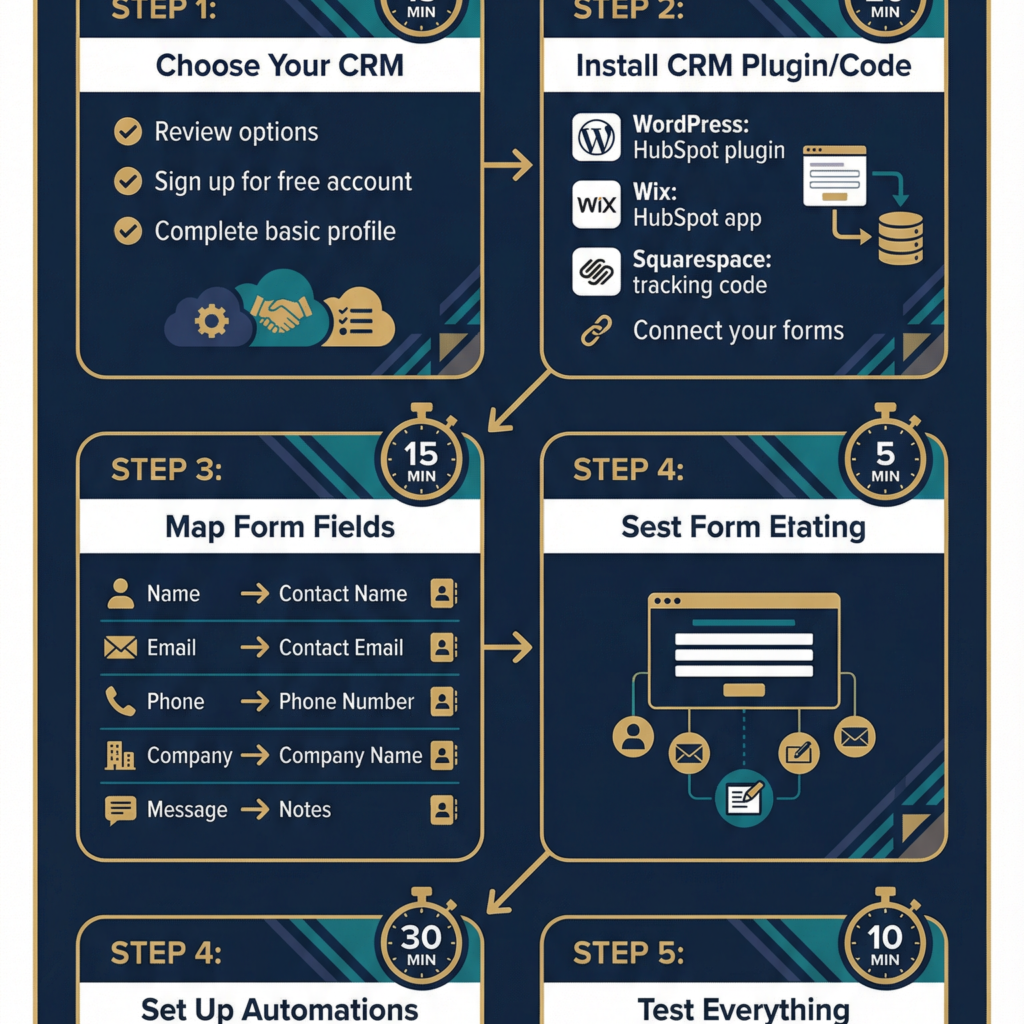
HubSpot CRM Setup Using the Free Version
Create Your HubSpot Account in 5 Minutes
- Go to hubspot.com
- Click “Get HubSpot Free”
- Email goes here then make a password
- Complete the basic setup wizard
Past every add-on offer, there it sits – free without expiry. No hidden cost waits behind that label.
Install the HubSpot plugin on WordPress
If You’re On WordPress
- Start by opening the Plugins menu, then pick Add New from there
- Search “HubSpot All-In-One Marketing”
- Hit Install then wait for it to run automatically. Activation happens right after setup finishes on its own
- Click “Connect to HubSpot”
- Authorize the connection
If You’re Using Wix
- Head over to the App Market
- Search “HubSpot CRM”
- Start by tapping the option labeled Add to Site
- Access your account on HubSpot
- Authorize the connection
If You’re on Squarespace
- Open the menu where you adjust preferences. Move into the section labeled advanced options. Find the part that lets you add custom code
- Get your HubSpot tracking code
- Place right at the top part
- Save
Connect Your Forms
This is where the magic happens.
For Contact Forms:
- Start inside HubSpot by opening the main menu. Navigate to the section labeled Marketing next. There, pick Forms from the options shown after it
- A fresh form might start blank. Or drop existing code into place instead
- Name appears first. After that comes Email. Next up is Phone. Then you see Company. Last one listed is Message
- Get the embed code
- Place this on your site’s contact section
Lead Magnet Form Headline
A different start, yet include these entries: same method, though slot in these spots:
- Which resource? (dropdown)
- Biggest hurdle you face? (text)
- Tell us where you found this page. Pick one option from the list below
Aim for fewer fields when building forms. Each extra one might drop responses by around ten percent. Shorter usually works better – people skip long ones. Skip anything unnecessary if you want more replies. Ten percent loss per added question adds up fast.
Ideal fields:
- First name
- One qualifying question
Done. More details come after.
Set up your first automation
Let’s create a simple but powerful automation:
New Contact Follow Up Automation
- Start inside HubSpot by opening the left menu. Head to Workflows under Automation next. Click through when ready
- Click Create Workflow
- Choose “Contact-based”
- Set enrollment trigger: “Contact is created”
- Add action: “Create task”Task: “Call new lead within 2 hours”Assign to: YouPriority: High
- Task: “Call new lead within 2 hours”
- Assign to: You
- Priority: High
- Add delay: 3 days
- Trigger a task: send an emailSubject: “Did you get what you needed?”Body: Short follow-up checking in
- Subject: “Did you get what you needed?”
- Body: Short follow-up checking in
- Save and activate
Each fresh connection receives:
- A message sits waiting, meant for your voice. One quick dial could shift things now. This moment holds what needs saying. Your turn comes around before long
- Automatic follow-up email in 3 days
Automating lead magnet delivery
- Create new workflow
- Trigger: “Form submission” (your lead magnet form)
- Action: Send email with download link
- Delay: 2 days
- Action: Send “Quick win” tip email
- Delay: 3 days
- Action: Send case study email
Keep going through seven messages, just like the blog one showed in that follow-up series.
Test All Components Carefully
Skipping tests? Bad idea. Follow this instead
- Fill out your contact form yourself
- Check if contact appears in HubSpot
- A signal came through – check if it landed on your end. Make sure the message hit the right spot
- Got it – system fired off that message automatically. Check your inbox now
- Fill out the form to get your free resource
- Email check process began
When something fails to function properly:
- Check your form mapping
- Check whether the process runs now
- Ensure emails aren’t going to spam
Connecting Several Data Sources

Start simple. When the first setup runs, move ahead – link these pieces next
LinkedIn to CRM
When someone fills out a form, automatically enrich their contact with:
- Company info
- Job title
- LinkedIn profile
- Company size
What you get with these kinds of tools:
- Clearbit (paid, expensive but powerful)
- Hunter.io (affordable)
- FullContact (good middle ground)
Calendar to CRM
When someone books a consultation:
- Contact automatically created/updated in CRM
- Meeting details added
- Reminder tasks created
- Post-meeting follow-up scheduled
How to set this up:
Calendly Meets HubSpot
- In Calendly, go to Integrations
- Connect HubSpot
- Map fields
- Enable two-way sync
Google Calendar meets Zoho
- Use Zapier
- Trigger: New Google Calendar event
- Action: Create/update Zoho contact
- Map meeting details to notes
Email to CRM
Track every email interaction:
- When you send emails
- When they open emails
- If users tap on links
- When they reply
Setup (HubSpot):
- Install HubSpot Sales Chrome extension
- Log in
- Compose emails from Gmail as usual
- Switch on the Track feature by pressing its button
- All activity logs to CRM automatically
Setup (Zoho):
- In Zoho, go to Setup → Email Integration
- Start by linking your Gmail account. Or maybe go with Outlook instead. Either one works just fine. Pick what feels right for you today
- Enable email tracking
- Configure which emails to sync
The Biggest Mistakes Consultants Make
Mistake One Customizing Too Soon
A single form field might do just fine at first. Later, more steps can join the process – but only if they pull their weight.
Start simple:
- Phone rings. Email lands next. Name appears beside it. Company ties it together.
- A single path moves forward step by step. From new leads, it shifts into first contact. After that comes a check for fit and readiness. Next, an offer takes shape based on needs. Finally, each ends one way – either closed with success or set aside
Add complexity only when simple doesn’t work anymore.
Mistake Two Failing to Train the Team
A tool works exactly as intended. Yet the person using it does not understand what to do.
Solution:
- Record a 10-minute Loom video
- Show exactly how to handle new leads
- Create a simple checklist
- Review together once
Mistake Three Setup And Forget
Your CRM Integration Needs Maintenance
Monthly:
- Review automation performance
- Check for errors/bounces
- Update email templates
- Archive old contacts
Quarterly:
- Audit contact data quality
- Remove duplicate contacts
- Review and update workflows
- Check integration connections
Mistake Four Failing to Group Contacts
Some leads matter more than others. Break them apart using:
Lead source:
- Website form
- LinkedIn message
- Referral
- Download lead magnet
Qualification level:
- Sizzling – available at this moment. Ready? It waits only for you
- Warm (evaluating options)
- Cold (just browsing)
Service interest:
- Executive coaching
- Team workshops
- One-on-one consulting
A few groups receive tailored email paths along with adjusted check-in schedules.
Mistake Five Overlooking Mobile
Out on the road. A new lead shows up. The office computer sits far away, locked out of reach.
Solution:
- Install CRM mobile app
- Enable push notifications for new leads
- Test mobile interface regularly
- Phone replies must be possible
What Integration Really Does
Michael Business Strategy Consultant Case Study
Before CRM integration:
- 12 leads/month from website
- Last we checked, replies took about 18 hours on average to come through
- Few connections slipped away each month. Three chances vanished without follow up. Some simply disappeared into silence. Each one lost track over time. A small number never got another call
- Got back to seven out of twelve people who showed interest. That left five without a reply on record
- Closed 1-2 clients/month
After CRM integration:
- Same 12 leads/month
- 2-hour average response time
- Zero leads lost
- Followed up with 12/12 leads
- Closed 4-5 clients/month
Revenue impact:
Eighty four thousand dollars each year turns into two hundred forty thousand through traffic from online pages
Six hours stand needed before things start running. That much time gets it ready, nothing less
That extra income? Came from just six hours put in. Money gained hit one hundred fifty six thousand dollars. Time spent was half a day. Result showed up fast. Effort stayed small. Payoff climbed high
Sarah Executive Coach Case Study
The specific automation that changed everything:
If a person grabs her free quiz…
- Assessment delivered immediately
- Email 1 (Day 2): “How to interpret your results”
- Email 2 (Day 5): Case study of client with similar assessment
- Email 3 (Day 8): “The 1 mistake executives make”
- Email 4 (Day 12): Survey asking about their situation
- One client saw changes after just two weeks. Another had tried everything else first, then found a better path. A third started with doubts, yet now recommends it without hesitation
- Email 6 (Day 21): Clear pitch for consultation
Results:
- 47 assessment downloads over 3 months
- 18 consultation requests (38% conversion)
- Seven turned into customers after consulting. That makes up thirty nine percent of those who had sessions
- A typical job brings in eight thousand five hundred dollars
Revenue from one automated sequence: $59,500 in 3 months
Your 90 Minute Implementation Checklist
Here is how it works. Take step one first. After that comes number two. Then move on without waiting. Each part fits together naturally. Stay with the flow. That way keeps things clear
Hour 1: Setup
- Pick a CRM system – go with HubSpot’s free version if you’re unsure where to start. That option works well when choices feel unclear. Sometimes starting is easier when one path stands out. Go that way unless something else pulls stronger
- Sign up here
- [ ] Install plugin/add tracking code
- One shape links up for testing
Basic Automation First Half
- [ ] Create “New contact → Follow-up task” workflow
- [ ] Create “New contact → Welcome email” workflow
- [ ] Test both with dummy submission
Break: Test Everything
- Fill out the paperwork on your own
- [ ] Verify contact appears
- [ ] Check task was created
- A check marks the message dispatched. Got it. Done
If things went right: Basics are behind you.
If it didn’t work:
- Check form field mapping
- Verify workflows are active
- Look for error messages
- Look up the exact error on Google
Advanced setup optional second hour
- [ ] Create lead magnet delivery sequence
- Start assigning values to leads when your CRM allows it
- [ ] Enable email tracking
- [ ] Connect calendar
Hour 2.5: Document
- Take a picture of how things are arranged on your screen. Snap what you see right now, just like that
- [ ] Create quick reference guide
- [ ] Note any quirks or issues
- [ ] Schedule monthly review
The “I’m Not Technical” Version
If everything seems like too much right now, try this instead: take one small step without planning the whole path
Use HubSpot Forms in about 20 minutes
- Create a free account at HubSpot
- In HubSpot, create a form
- Paste the provided script snippet instead
- Paste into your website contact page
- Done
Each entry heads straight to HubSpot. Without a plugin involved. Complexity stays out of the picture entirely.
Use Zapier in about half an hour
- Create a Zapier account – no need to pay, the free option is enough
- Create a Zap: “New form submission → Create contact in [your CRM]”
- Connect your website platform
- Connect your CRM
- Map the fields
- Turn it on
Zapier takes care of connecting things. No coding needed on your part.
Hire Someone 2 Hours 100 to 200 Dollars
Post on Upwork or Fiverr: “Need HubSpot CRM integrated with my WordPress site. Should take 1-2 hours for someone who knows what they’re doing.”
Budget: $100-200
You get:
- Professional setup
- Tested and working
- Basic automations configured
- Documentation
A wrong turn might cost more than the fare. Experience cuts through guesswork. Paying a pro isn’t expense – it’s speed.
The Bottom Line
When aiming for growth, skipping CRM integration on your site just won’t cut it.
Without it:
- Leads get lost
- Might skip a beat if the mind slips. Yet return often hinges on what sticks around inside thoughts
- Response times are slow
- Hours vanish when typing info by hand
- Conversion rates stay low
With it:
- Every lead captured automatically
- Follow-ups happen systematically
- Faster replies show up within hours instead of stretching into days
- Zero stands where data entry should be
- Folks see two times more success turning visits into sales. Sometimes it even hits threefold gains without changing much else
Getting things ready takes between one and a half hours up to six. The exact time shifts based on how involved the task turns out to be
Some folks pay nothing each month. Others spend up to two hundred dollars. Most advisors fall somewhere in that range
ROI: 3-10x more clients from the same traffic
Why haven’t you started already? That’s the real issue, not if you should.
Help with CRM integration?
Folks who advise businesses get CRM tools linked up weekly. This is exactly what shows up in their setup:
Standard Package ($800):
- CRM setup (HubSpot, Zoho, or Pipedrive)
- Website form integration
- Basic automation (2-3 workflows)
- Email sequence setup
- Testing and documentation
Premium Package ($1,500):
- Everything in Standard
- Advanced automation (5-7 workflows)
- Lead scoring setup
- Calendar integration
- Email tracking
- 30-day support
Timeline: 3-5 business days
Fully Automated Lead Capture System
Start by scheduling a no-cost quarter-hour chat where we’ll go over how things are set up now. That session reveals which parts drain your potential customers away. From there, it becomes clear how connecting systems changes outcomes for your work.
Grab the free CRM comparison sheet we offer. It includes full details on features across top platforms, laid out clearly. Pricing is broken down so you can see costs at a glance. Integration challenges are rated too, making it easier to judge effort needed.
Free CRM comparison tool download
Last thing on your mind – what CRM do you use now, maybe thinking about switching? Slide into the comments. I’ll let you know whether that pick fits where you’re at.